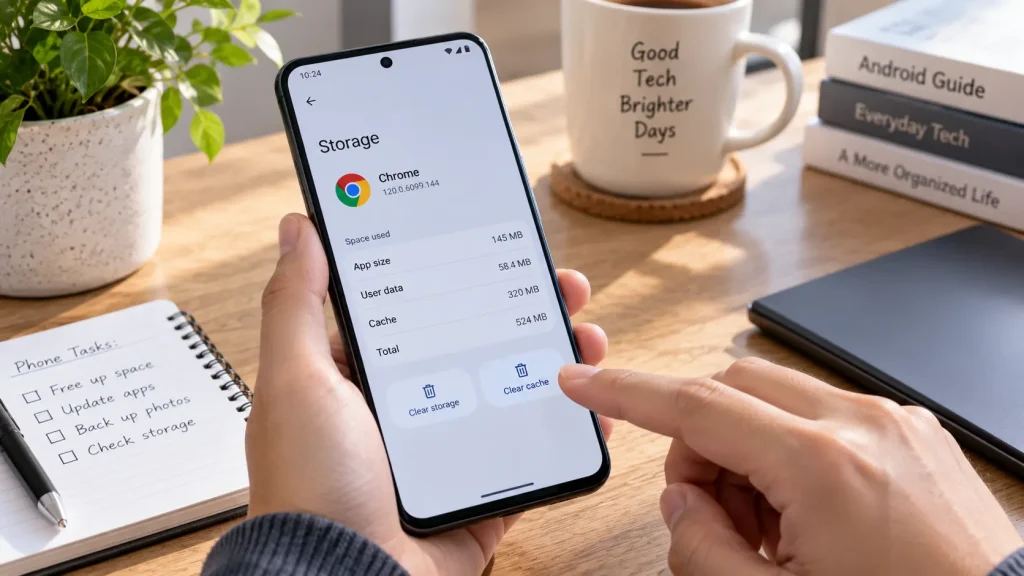
You are trying to free up space on your phone, and an app’s settings show two similar-looking buttons: Clear cache and Clear storage.
They do not do the same thing.
Clearing cache removes temporary app data. Clearing storage removes the app’s locally stored data and can reset it. Google makes this distinction in its Android storage guidance, so choosing the correct button matters more than how much space you hope to recover.
Before tapping either one, decide what you are trying to solve: an app that is misbehaving, a website that will not load correctly, or a phone that is running out of storage.
Each problem calls for a slightly different approach.
Clear Cache vs. Clear Data: The Important Difference
Here is what the two options generally mean:
| Option | What it removes | What to expect |
|---|---|---|
| Clear cache | Temporary files belonging to the selected app | The app normally keeps your settings and sign-in information |
| Clear storage / Clear data | The app’s locally stored information, including settings and account details | The app may behave like a fresh installation and require setup again |
Samsung explains that clearing an individual app’s cache retains its settings and user data. Clearing app data is more disruptive: it can remove saved preferences, files and progress, and sign you out.
Treat Clear data as a reset—not a more powerful version of routine cleaning.
Before resetting an app, check whether anything important exists only inside it. Do not assume that signing back in will restore an unsynced draft or other local-only information.
Why Apps Store Cache in the First Place
Cache is not automatically junk.
An app can keep a local copy of something it would otherwise need to download repeatedly. An image is a simple example: keeping a copy allows the app to reuse it rather than fetch it again each time.
Android’s developer guidance specifically recommends caching to reduce repeated downloads. That means a growing cache can be a normal result of using an app, not evidence that something is wrong.
The trade-off is storage space.
Removing those temporary copies frees room, but the app may need to recreate or download them later. Some apps can therefore feel slower the first time you open them after clearing their cache.
The goal should not be to keep every cache permanently empty. It should be to use the option when it addresses a specific problem.
Will Clearing Cache Delete Photos, Messages or Passwords?
Clearing only an app’s cache is not intended to erase your photo library or reset your accounts. Android distinguishes temporary cache files from persistent app data and shared files such as photos and documents. Samsung also states that its per-app cache-clearing process retains user data and settings.
However, that is not a guarantee about every item displayed inside every app.
A temporary image stored only in a cache is different from an original photo saved to your device. Similarly, do not assume that content visible inside an app has necessarily been saved somewhere permanent.
Android tells developers that cache files can be removed by the operating system when storage is low. Cache is therefore not an appropriate place for the only copy of something important.
For anything you cannot afford to lose, verify its saved or backed-up location before using more aggressive options such as clearing storage, deleting downloads or uninstalling the app.
How to Clear One App’s Cache
Start with the app causing the problem rather than clearing everything indiscriminately.
On a Google Pixel, the usual route is:
Settings → Apps → See all apps → Select the app → Storage & cache → Clear cache.
On a Samsung Galaxy, the route is generally:
Settings → Apps → Select the app → Storage → Clear cache.
Samsung notes that menus and available settings can vary by model and region.
Read the button label carefully. Clear storage or Clear data may appear on the same screen.
After clearing the cache, reopen the app and repeat the action that was failing. For example, try opening the same page or loading the same screen.
This gives you a useful comparison. Clearing several apps at once makes it harder to tell which change, if any, helped.
When Is Clearing Cache Worth Trying?
It is a reasonable troubleshooting step when one app is not working properly—not a guaranteed cure for a slow phone.
Google’s troubleshooting sequence also includes restarting the device, checking for Android and app updates, and stopping an unresponsive app. Cache clearing is one part of that process.
A sensible order is:
- Restart the phone and check for an update to the affected app.
- Try the app again.
- Clear that app’s cache if the problem remains.
- Test again before considering a reset or reinstall.
If other apps work normally but the same one continues to fail, contact its developer or check its official troubleshooting guidance. Google recommends developer support for persistent problems limited to one app.
Record what happened: whether clearing cache made no difference, helped briefly or resolved the issue. That is more useful than repeatedly pressing the button without checking the result.
Why Does the Cache Fill Up Again?
Because you are using the app again.
Google describes the storage recovered from clearing cached data as temporary. The files can build up again over time.
That does not necessarily mean the cleanup failed.
Think of it as removing reusable working copies. If the app still needs them, it creates new ones.
There is also no reason to assume that daily clearing will make an otherwise healthy app faster. Caching reduces repeated downloads; repeatedly deleting useful cached content can make the app retrieve that information again. That is a trade-off, not an automatic performance improvement.
For that reason, a problem-led approach makes more sense than a daily cleaning schedule.
If the app works properly and storage is not under pressure, leave its cache alone.
Clearing Chrome’s Cache Is Different From Deleting Cookies
Browser cleanup introduces another set of similar-sounding choices.
Chrome separates cached images and files, cookies and site data, and browsing history. Selecting all of them is not the same as clearing only cached files.
Cached files help pages load without downloading every element again. Cookies can help websites remember a signed-in session or preferences. Deleting cookies can therefore sign you out of websites even when deleting cached images alone would not.
For a cache-only cleanup in Chrome on Android:
Open Chrome → More → Delete browsing data → More options.
Choose the appropriate time range and select Cached images and files. Review the other categories and leave them unselected unless you deliberately want to remove them too.
Do not accept a broad deletion screen without checking what is selected.
If the problem is one website displaying an outdated or broken page, begin with the narrowest relevant cleanup. You do not need to erase your entire browsing history just because a page looks wrong.
If Storage Is Full, Look Beyond Cache
Clearing cache only addresses one part of an app’s storage use.
For an illustrative example, suppose an app occupies roughly 3GB, but its cache accounts for only 200MB. Clearing that cache cannot recover the full 3GB.
Check the phone’s storage breakdown before deciding what to remove.
Google recommends reviewing categories such as downloaded media, unused apps and files. For downloaded content, it advises removing it through the app used to download it. That gives you more control than resetting the whole application.
For example, review a video app’s offline downloads before clearing all its data. Check a file manager’s Downloads folder before assuming temporary app files are responsible for the shortage.
You can also use a cleanup tool you already trust, but review its categories. Files by Google offers a Junk files cleanup for temporary files and warns that the files removed by that operation are permanently deleted. Its other cleanup suggestions should not be treated as an instruction to delete everything shown.
A large file is not necessarily an unnecessary file.
Be More Careful With System Services
Do not turn a single-app problem into an experiment with every system component.
Google specifically advises against clearing Google Play services data until other troubleshooting options have been tried. It warns that doing so can remove information saved on the device, including some payment or transit-card information, and may require authentication again.
That warning concerns clearing data or storage, not simply observing how much space the service uses.
For system services, payment apps and anything containing important local information, follow the relevant official instructions rather than a generic “clear everything” tutorial.
Choose the Smallest Change That Solves the Problem
Before deleting anything, name the problem.
If one app is malfunctioning, troubleshoot that app. If a website looks wrong, examine the browser’s relevant data options. If storage is full, find the categories taking up the space.
The most useful habit is not frequent cleaning. It is checking exactly what an action will remove.
Clear cache and clear data are different tools. Use the lighter one first when appropriate, and do not reset an app until you understand what needs saving.