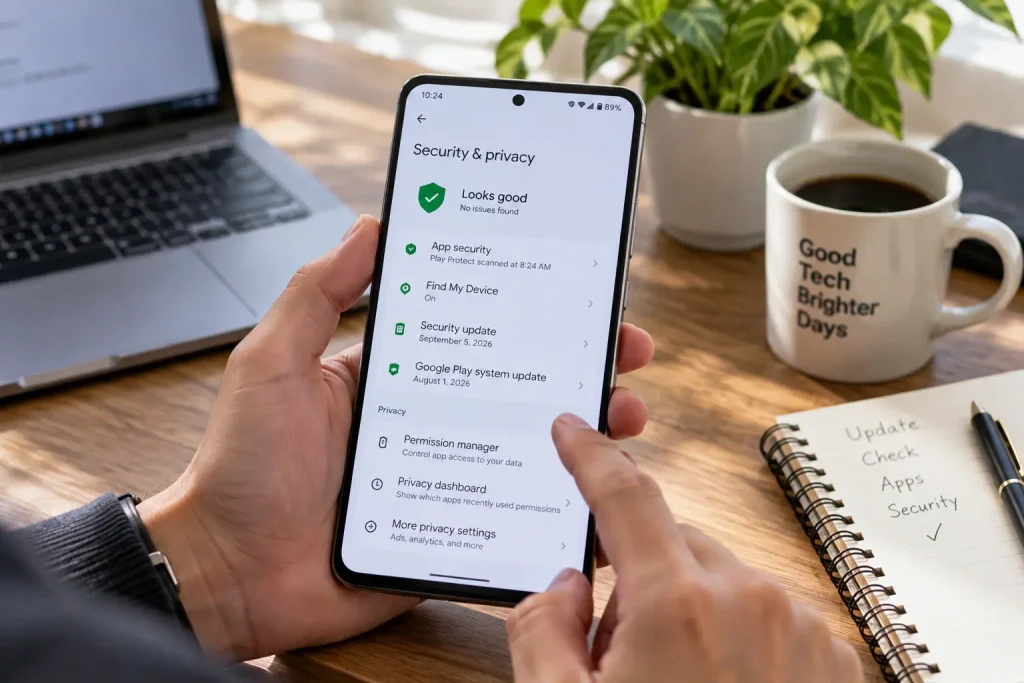
Most Android phones don’t display a big warning that says, “Your security is out of date.”
The phone may still turn on normally. WhatsApp works. Chrome works. Your banking apps open. From the outside, everything can look fine even when the device hasn’t received a security patch for months.
That’s why checking Android security occasionally is worth a few minutes.
You don’t need a security app or technical knowledge to do it. Android already provides most of the information you need.
Here are eight things to check.
1. Check Your Android Security Patch Date
Start with one of the most useful pieces of information on the phone: the Android security update date.
On many Android devices, you’ll find it under:
Settings → About phone → Android version
Look for:
- Android version
- Android security update
- Google Play system update
- Build number
The exact menu names can vary between Samsung, Google Pixel, Xiaomi, Motorola and other manufacturers, but searching Settings for “security update” usually gets you there.
The date matters because Android security patches address vulnerabilities discovered in the operating system and related components.
For example, Google’s September 2026 Android Security Bulletin included several critical vulnerabilities. Google states that devices with a security patch level of 2026-09-05 or later address all applicable issues listed in that bulletin.
That doesn’t mean every Android phone should display exactly the same patch date on the same day.
Updates depend on the manufacturer, model and sometimes the mobile carrier.
The important question is:
Is your phone still receiving security updates at all?
A phone that’s a few weeks behind is very different from one that hasn’t received a security patch in a year.
2. Check for a Software Update Manually
Don’t assume that no notification means no update is available.
Open:
Settings → System → Software update
Depending on your phone, this may instead be called:
- System update
- Software updates
- System software update
Check manually.
Before installing a large update, connect to Wi-Fi and make sure the battery has plenty of charge.
Android updates can include more than new features. They may contain operating-system fixes and security improvements that aren’t obvious after installation.
Once the update finishes, restart the phone if required.
Then return to the Android version screen and check the security patch date again.
3. Don’t Forget the Google Play System Update
This one is easy to miss.
Your phone can have both an Android security update and a Google Play system update.
They aren’t the same thing.
Google Play system updates allow Google to update certain Android components separately from a traditional full operating-system update.
On supported devices, look under:
Settings → Security & privacy → System & updates → Google Play system update
You may be prompted to restart after installing one.
If you’re checking whether a phone is current, look at both dates rather than checking only the Android version number.
A phone saying “Android 16,” for example, doesn’t by itself tell you how current its security components are.
4. Make Sure Google Play Protect Is On
Next, open the Google Play Store.
Tap:
Profile icon → Play Protect → Settings
Make sure:
Scan apps with Play Protect
is enabled.
Play Protect checks apps for potentially harmful behavior. It scans apps from Google Play and can also detect potentially harmful applications installed from other sources.
Depending on what it finds, Play Protect can warn you, disable an app or remove a harmful app.
Google enables Play Protect by default on supported devices, so most people won’t need to turn it on manually.
It’s still worth checking — particularly on a phone that has been modified, used by someone else or configured to install apps from outside Google Play.
If you sometimes install apps from outside the Play Store, also consider enabling:
Improve harmful app detection
This can allow unknown apps to be submitted for additional analysis.
5. Review Apps Installed From Outside Google Play
Android allows more flexibility than some mobile platforms when it comes to installing software.
That can be useful.
It also means you should know where your apps came from.
Go through your installed apps and ask:
Do I recognize everything here?
Pay particular attention to apps installed from:
- APK download websites
- links in messages
- file-sharing services
- unofficial app stores
- social media links
Installing an APK doesn’t automatically make an app dangerous.
But software from an unfamiliar source deserves more scrutiny because you’re relying on that source to provide the genuine, unmodified application.
If you don’t recognize an app, don’t immediately open it to investigate.
Check its name, permissions and installation source first.
If it serves no purpose and you don’t trust it, uninstalling it may be the simpler option.
6. Review Sensitive App Permissions
A legitimate app can still have more access than you want it to have.
Open:
Settings → Security & privacy → Privacy → Permission manager
Menu names vary between Android versions, but you’re looking for permissions such as:
- Camera
- Microphone
- Location
- Contacts
- SMS
- Phone
- Photos and videos
- Nearby devices
Look at which apps have access.
Then ask whether that permission makes sense.
A navigation app having location access is expected.
A photo app requesting access to your images may be reasonable.
A simple calculator requesting microphone, contacts and precise location deserves more questions.
Pay particular attention to apps you rarely use.
Android can automatically remove permissions from unused apps on supported versions, but it’s still worth reviewing important permissions yourself occasionally.
Don’t remove permissions randomly from system apps. The goal isn’t to make every permission disappear.
The goal is to make sure access matches purpose.
7. Check Whether the Device Is Play Protect Certified
There’s another useful status hidden inside Google Play.
Open:
Google Play Store → Profile → Settings → About
Look for:
Play Protect certification
Ideally, it should say:
Device is certified
Play Protect certification is separate from Play Protect’s malware scanning.
According to Google, certified devices have passed Android compatibility testing and are eligible to include licensed Google apps such as the Play Store.
An uncertified device doesn’t automatically mean someone has hacked your phone.
It can appear on modified devices, custom Android builds or devices that haven’t gone through Google’s certification process.
But if you purchased what was supposed to be a normal mainstream Android phone and unexpectedly see “Device is not certified,” investigate before using the phone for sensitive activity.
Google warns that uncertified devices may not receive normal Android system or app updates and may not be as secure.
8. Find Out How Long Your Phone Will Receive Updates
This is the check that becomes increasingly important as a phone gets older.
A perfectly functional smartphone can eventually reach the end of its manufacturer’s security-support period.
The screen still works.
The battery may still be acceptable.
Apps may continue opening.
But security updates can stop.
Search the manufacturer’s official support pages for your exact model and find its update policy.
Don’t rely entirely on the number of years promised for the company’s newest phones. Support policies can differ between:
- model generations
- budget and flagship devices
- regions
- carrier variants
What matters is the policy for your exact device.
If a phone has reached the end of security support, that doesn’t mean it suddenly becomes unsafe at midnight on the final day.
It means newly discovered vulnerabilities may no longer receive fixes from the manufacturer.
The longer that continues, the harder it becomes to consider the device fully current.
Android Version and Security Patch Are Not the Same Thing
This distinction causes a lot of confusion.
Imagine two phones:
| Phone | Android Version | Security Patch |
|---|---|---|
| Phone A | Android 17 | September 2026 |
| Phone B | Android 17 | January 2026 |
Both run the same major Android version.
They aren’t equally current from a security-update perspective.
That’s why checking only:
“Which Android version do I have?”
isn’t enough.
Check the security patch level too.
The same applies when buying a used Android phone.
A seller saying that a device runs a relatively recent Android version doesn’t tell you whether the manufacturer is still actively supporting it.
What If Your Phone Says No Updates Are Available?
This can mean several different things.
The simplest possibility is that your device really is current.
But it can also mean:
- your manufacturer hasn’t released the update yet
- your carrier rollout is delayed
- the update is being released gradually
- your particular model has reached the end of support
Android update schedules vary by device, manufacturer and mobile operator.
If your security patch looks unusually old, check your manufacturer’s official support page.
That will tell you much more than repeatedly pressing Check for update.
Should You Install a Third-Party Antivirus App?
Not necessarily.
Android already includes multiple layers of security, including app sandboxing, permission controls, security updates and Google Play Protect on devices with Google Mobile Services.
For many ordinary users, keeping those protections enabled and practicing sensible app-installation habits is more useful than installing several security apps.
An antivirus app also can’t compensate for an operating system that no longer receives security fixes.
If your phone hasn’t been patched for years, installing another scanner doesn’t suddenly make the underlying Android system current.
Start with the basics:
Updates + Play Protect + sensible app sources + appropriate permissions.
A Five-Minute Android Security Check
If you don’t want to work through every setting today, do these five:
| Check | What you’re looking for |
|---|---|
| Android security update | A reasonably current patch date |
| Google Play system update | No pending update |
| Play Protect | Enabled |
| App permissions | Nothing obviously unnecessary |
| Play Protect certification | Device is certified |
Then check your manufacturer’s support policy once or twice a year, especially as the phone gets older.
A Secure Phone Isn’t Just About Avoiding Malware
Android security is easy to think about only in terms of viruses or suspicious APK files.
It’s broader than that.
Security patches fix vulnerabilities in the operating system.
Play Protect looks for harmful applications.
Permissions control what installed apps can access.
Device certification helps establish that the phone meets Android compatibility requirements.
And manufacturer support determines whether new vulnerabilities will continue receiving fixes.
None of these protections is perfect by itself.
Together, they make a much bigger difference.
You don’t need to obsess over every security setting or install a collection of “phone cleaner” apps.
Just check the fundamentals periodically.
Five minutes every few months is enough to spot many of the problems that are easiest to fix — before they become problems you wish you’d noticed earlier.