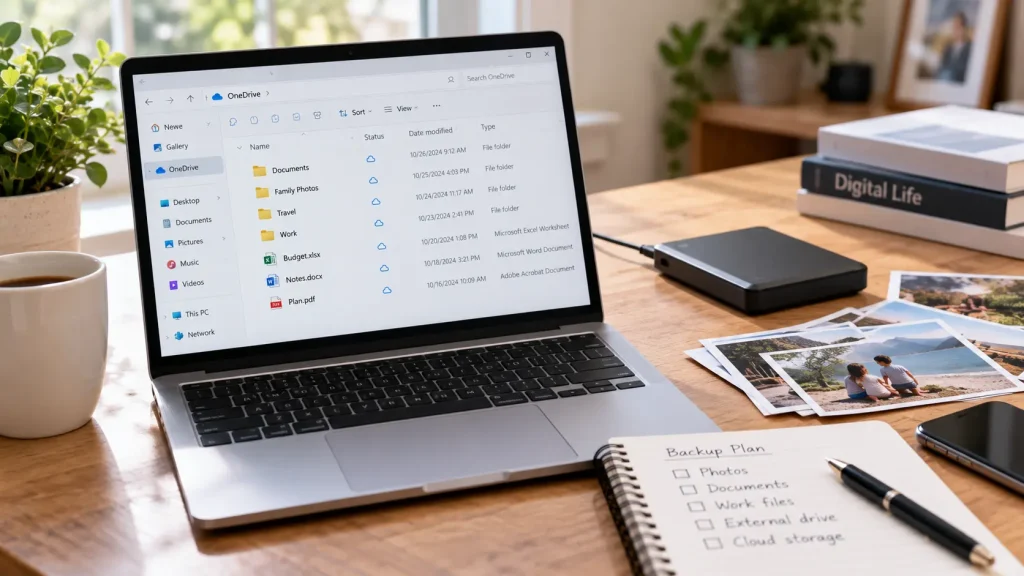
You delete an old folder to free up space on your laptop. Later, you open your cloud storage and discover that the folder has disappeared there too.
You thought you were removing the local copy. The service treated it as a deletion to apply everywhere.
That can be normal syncing behavior. Google Drive, for example, explains that when you stream or mirror files with Drive for desktop, putting a file in the trash sends it to the trash across those synced locations.
Cloud storage can be part of a backup plan, but file syncing alone does not guarantee that you can recover something after deleting or overwriting it.
The important question is not simply whether a file is “in the cloud.” It is what copies remain when something goes wrong.
Cloud Storage, Syncing and Backup Do Different Jobs
Cloud storage gives your files a location online. Syncing keeps selected files up to date between that location and your devices. In Google Drive for desktop, for example, edits automatically sync between the computer and Google Drive.
A backup has a different purpose: providing a separate copy you can restore when the original is lost or unavailable. The UK’s National Cyber Security Centre describes both cloud storage and removable drives as possible backup destinations. National Cyber Security Centre
These functions can overlap. A cloud service may combine syncing, deleted-file recovery and version history.
So the distinction is not “cloud storage is bad, backup is good.” It is:
Syncing keeps your working files consistent. A backup plan gives you a way back when that working set is damaged or lost.
Whether your current setup does both depends on its settings and recovery features.
Why Deleting a File Can Remove It From Several Places
A synced folder is not necessarily an independent archive.
Microsoft’s OneDrive instructions distinguish between removing files from the computer, removing them from OneDrive, and deleting them from both. Deleting an item within the OneDrive folder can remove it from both the computer and OneDrive.
Consider a household receipts folder. You can see it on your laptop, another computer and the service’s website.
That looks reassuring, but those locations may all follow the same changes. A deletion can travel between them just as an edit does.
Being visible in three places is not the same as having three independently recoverable copies.
Do not assume every application behaves identically, either. Check the deletion rules for the exact app, folder and syncing mode you use before removing anything important.
“Free Up Space” Is Different From “Delete”
First, identify which storage is nearly full: your device or your online account.
Google explicitly distinguishes computer storage from Google Account storage. Streaming files can reduce the space used on the computer without reducing the amount stored online.
That distinction changes the appropriate action.
For OneDrive files already downloaded to a computer, Free up space changes them back to online-only. Microsoft states that this does not delete them from OneDrive. Pressing Delete is a different operation.
Apple offers a related approach for iCloud Photos through Optimize Storage. The device can keep smaller, space-saving versions while the originals remain in iCloud. That is different from deleting pictures from the photo library.
Before a large cleanup, ask:
Am I removing a downloaded copy, or deleting the item itself?
If the interface does not make that clear, stop and check the service’s instructions.
A Visible File Is Not Always a Downloaded File
Cloud apps can show files that are not fully stored on the device.
OneDrive’s online-only files appear in the file browser but require an internet connection to open. Marking a file Always keep on this device downloads it for offline access.
This matters when preparing a separate backup.
Do not judge success from filenames or thumbnails alone. Check whether your backup process includes the actual file contents. Restore a sample document or photo and open it from the backup destination.
Also remember that offline availability does not remove a file from syncing. A downloaded copy inside an actively synced folder is still part of that arrangement.
Deleted-File Recovery Has Limits
If you accidentally delete something, the service’s online trash or recycle bin is a sensible first place to check.
Current provider guidance includes these recovery windows:
| Service | Where to look | Standard recovery window |
|---|---|---|
| Google Drive | Trash | Files are automatically deleted after 30 days. |
| OneDrive personal accounts | Online Recycle Bin | Deleted files can generally be restored within 30 days. |
| iCloud Photos | Recently Deleted | Photos and videos can be recovered for up to 30 days. |
These are not promises of permanent protection. Emptying the trash or permanently deleting an item can remove the ordinary recovery option earlier. Work and school accounts can also have different retention settings.
For OneDrive, check the online recycle bin even when your computer’s recycle bin is empty. Microsoft notes that files deleted from the cloud, including online-only files, do not necessarily appear in the computer’s bin.
If the file still exists but its contents are wrong, look for version history instead. OneDrive provides a way to restore an earlier version, although availability and retention depend on the service and account settings.
A recycle bin helps with deletion. Version history helps with unwanted changes. Neither should be assumed to preserve everything indefinitely.
Your Photo Library May Not Have the Extra Backup You Expect
Photo syncing deserves particular attention because replacing family pictures may be impossible.
With iCloud Photos enabled, deleting a photo on one participating device deletes it everywhere you use that synced library. Apple also states that photos stored in iCloud Photos are not duplicated in the device’s iCloud backup.
That means “I use iCloud Photos and my phone backs up to iCloud” does not establish that the photo library has two separate backups.
For a separate copy, Apple provides photo download and original-export options, including saving exported originals to external storage. Check the destination carefully so the export goes where you intend.
Before relying on that copy, open several exported images and a video. Verify that the files you care about are present, rather than assuming the export included the entire collection.
Keep Important Files Outside a Single Syncing System
For irreplaceable material, the NCSC recommends considering both a cloud copy and a copy on removable media. It also advises disconnecting removable backup storage when it is not in use, because malware can affect attached storage. National Cyber Security Centre
A practical household approach is to keep using cloud syncing for everyday access while maintaining a separate backup of selected important files.
Choose a process that preserves recovery points rather than simply making another folder match every deletion. Check how long deleted files and older versions remain available.
Then set a backup interval based on what you could tolerate losing. For a folder edited daily, a copy made six months ago is not a useful recovery point for yesterday’s work.
The aim is not to collect more copies without understanding them. It is to know which copy survives the particular mistake you are trying to protect against.
Test Recovery With a File That Does Not Matter
Do not discover your recovery process for the first time after losing your only copy of something valuable.
Here is a small test to run in a personal account:
- Create a disposable document. Give it an unmistakable name, such as
backup-test, and put a short sentence inside. - Confirm it has uploaded. Open the document through the cloud service’s website.
- Test the recycle bin. Delete only that disposable file, then restore it using the service’s documented recovery procedure.
- Test the separate backup. After your backup includes the document, retrieve it into a different folder and confirm its contents.
Do not empty the trash, reset the account or delete real documents during this exercise.
The cloud-bin test establishes that you know how to recover a recent deletion. The separate-backup test answers another question: can you retrieve a usable copy independently of the current synced folder?
Those are different checks.
If a File Is Already Missing, Avoid Making More Changes
Stop any bulk cleanup and verify that you are signed into the correct account.
Check the service’s online trash and, where relevant, version history. For a shared OneDrive file owned by someone else, contact the owner or your organization’s administrator; Microsoft distinguishes those files from items in your own OneDrive.
Avoid jumping straight to a whole-account rollback. Restoring an older version makes that version current, so first preserve any newer work you still need.
Write down the filename, its previous location, when it disappeared and what you did immediately beforehand. That gives support a clearer starting point than trying several recovery tools without a record.
Ask Whether You Can Recover It—not Just Whether It Is Online
Cloud syncing is convenient. You do not need to stop using it.
Instead, check three things about the files that matter: what happens when you delete them, how long recovery remains possible, and where a separate usable copy is kept.
A reassuring icon is useful. A successful restore is better evidence.
The strongest answer to “Are my files backed up?” is being able to show where the backup is—and having tested how to get a file back.