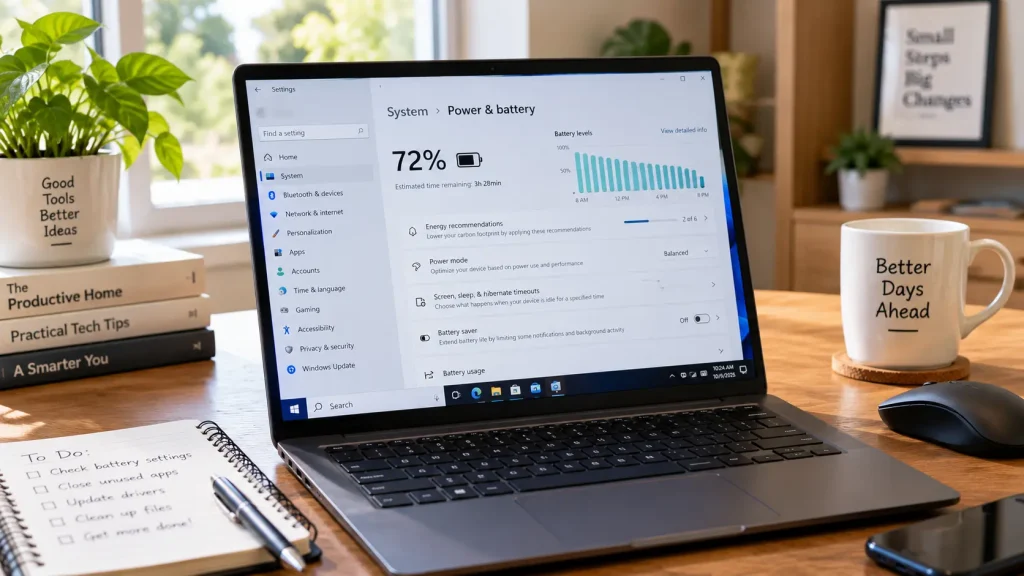
Your laptop used to last most of the workday. Now you’re looking for a charger before lunch.
Sometimes the change happens gradually. Other times, battery life seems to get worse almost overnight, even though you haven’t changed how you use the computer.
A worn-out battery is one possible explanation, but it isn’t the only one. Display brightness, background applications, power settings, software updates and even connected accessories can affect how quickly a laptop loses charge.
Before paying for a replacement battery, there are several things worth checking.
1. Your Screen Is Using More Power Than Necessary
The display is one of the most noticeable contributors to laptop power consumption.
A bright screen can be useful outdoors, but keeping brightness near maximum while working indoors may waste energy.
Start by lowering brightness to a comfortable level.
On Windows 11, open Settings → System → Display.
On a MacBook, use the brightness controls or open System Settings → Displays.
If your laptop has a high-refresh-rate display, switching to a lower refresh rate may also help. Some Windows laptops support Dynamic Refresh Rate, which adjusts refresh behavior automatically.
Don’t reduce brightness so much that the screen becomes uncomfortable to read. The goal is a reasonable balance.
2. Background Applications Are Still Running
Closing an application window doesn’t always mean the application has stopped working.
Cloud storage services, messaging apps, browsers and software updaters may continue running in the background.
These processes can consume CPU time, use network connections and increase battery consumption.
On Windows
Open Settings → System → Power & battery → Battery usage.
Review which applications have consumed the most battery.
For supported apps, Windows may allow you to restrict background activity.
You can also open Task Manager to check for processes using unusually high CPU resources.
On Mac
Open Activity Monitor → Energy.
Look at the Energy Impact column to identify applications using significant power.
If an application is consuming energy even when you’re not actively using it, consider quitting it or reviewing its settings.
Don’t force-close unfamiliar system processes without checking what they do.
3. Your Laptop Is Set to Maximum Performance
Performance settings can make a substantial difference, especially on powerful Windows laptops.
A laptop configured for maximum performance may prioritize responsiveness over battery efficiency.
That’s useful for demanding tasks, but unnecessary when you’re reading documents or browsing websites.
On Windows 11, open:
Settings → System → Power & battery → Power mode
Select a more efficient power mode when working away from a charger.
You can also enable Energy Saver.
On a MacBook, look for Low Power Mode under Battery settings, where available.
These settings may reduce some background activity or performance to extend runtime.
4. Your Battery Has Lost Some of Its Original Capacity
Laptop batteries don’t maintain their original capacity forever.
Most modern laptops use lithium-ion batteries, which gradually degrade through use, age and exposure to heat.
That means a battery that originally stored 50 watt-hours may eventually hold considerably less.
The laptop can still show 100% charge, but that percentage represents its current available capacity — not necessarily what it held when new.
How to check battery health on Windows
Open Command Prompt and run:
powercfg /batteryreport
Windows generates an HTML report.
Open the file and look for:
- Design Capacity
- Full Charge Capacity
- Battery Capacity History
For example, suppose your report shows:
Design Capacity: 50,000 mWh
Full Charge Capacity: 35,000 mWh
Your battery currently holds approximately 70% of its original rated capacity.
That doesn’t automatically mean it must be replaced, but it helps explain shorter runtime.
How to check on MacBook
Open System Settings → Battery → Battery Health, if available on your model and macOS version.
You can also find battery information through System Information.
If the system recommends service, consider having the battery assessed by Apple or an authorized service provider.
5. Your Browser Is Doing More Work Than You Think
A browser with many tabs isn’t necessarily a problem by itself.
What matters is what those tabs are doing.
Streaming video, browser-based games, live dashboards, web applications and poorly behaving extensions can keep the processor busy.
Try closing unnecessary tabs and disabling extensions you rarely use.
If one website consistently makes the laptop hot or causes the fan to run loudly, that page may be consuming substantial resources.
Modern browsers often include memory-saving or energy-saving features. Check your browser’s performance settings to see what’s available.
6. Your Laptop Is Getting Too Hot
Heat affects both battery performance and long-term battery health.
When a laptop gets hot, its cooling system may need to work harder. Excessive heat can also accelerate lithium-ion battery degradation.
Common causes include:
- blocked ventilation
- dust buildup
- heavy workloads
- soft surfaces covering air vents
- high room temperatures
- charging while running demanding applications
Use the laptop on a firm, stable surface that allows ventilation.
Avoid leaving it in a hot car or direct sunlight.
If the laptop repeatedly overheats during light tasks, there may be a cooling or hardware issue that needs attention.
7. Sleep Mode Isn’t Working as Expected
Have you ever closed your laptop with 80% battery remaining, then opened it the next morning to find only 45%?
That suggests the computer may have continued using power while you thought it was sleeping.
Some laptops maintain network connections or perform background tasks during certain sleep states.
First, check your sleep and lid-close settings.
On Windows, open the power settings and review what happens when the lid closes.
For longer periods when you won’t use the computer, Hibernate or a full shutdown may be more appropriate.
On a MacBook, check whether connected accessories or applications are preventing sleep. Activity Monitor can help identify processes that keep the computer awake.
A useful test is to record the battery percentage before leaving the laptop overnight and compare it the following morning.
Repeat the test after changing one setting to see whether the result improves.
8. Connected Devices Are Drawing Power
USB accessories can consume electricity from your laptop.
Examples include:
- external hard drives
- USB-powered lights
- external displays
- wireless receivers
- phones charging through USB
- docking stations
Some devices draw very little power, while others can have a noticeable effect.
If battery life matters, disconnect accessories you aren’t using.
This is especially worth checking if your laptop lasts much longer when used without a docking station or external equipment.
9. A Software Update Changed Something
Sometimes battery drain becomes noticeable after an operating-system, driver or application update.
An update may temporarily trigger background activity such as indexing or synchronization.
In other cases, a software problem may cause a process to consume more resources than expected.
Start with a normal restart.
Then check whether additional updates are available from Windows Update, macOS or the laptop manufacturer.
If the problem began immediately after a specific update, review battery usage and system activity before assuming the physical battery has failed.
Avoid installing random third-party driver utilities that promise dramatic battery improvements.
Use official software and drivers wherever possible.
10. Your Laptop’s Hardware Demands More Power
Not all laptops are designed for the same runtime.
A lightweight laptop with integrated graphics may use considerably less power than a gaming laptop with a dedicated GPU.
High-resolution displays, powerful processors and demanding applications can all increase energy consumption.
Video editing, gaming, 3D rendering and other intensive tasks may drain a battery quickly even when everything is working correctly.
If your laptop lasts six hours while browsing but only ninety minutes during a demanding game, that difference alone doesn’t prove the battery is defective.
Compare runtime under similar workloads rather than relying only on the manufacturer’s maximum advertised battery-life figure.
How to Find What’s Actually Draining Your Battery
Instead of changing every setting at once, use a simple troubleshooting process.
| What you notice | What to check first |
|---|---|
| Battery drains during ordinary browsing | Screen brightness, browser activity, power mode |
| Laptop loses charge overnight | Sleep settings, background activity |
| Battery life gradually worsens over years | Battery health and capacity |
| Sudden drain after an update | CPU usage, app activity, further updates |
| Laptop gets hot during light use | Background processes and ventilation |
| Battery drains quickly during gaming | CPU/GPU workload and power settings |
| Battery drops quickly with accessories | USB devices and external displays |
Start with the most likely cause.
Make one change, then use the laptop normally for a day or two.
If you change ten settings at once, you may improve battery life without knowing which adjustment actually helped.
When Should You Replace the Laptop Battery?
A battery replacement becomes worth considering when:
- the full-charge capacity has declined significantly
- runtime is no longer practical for your needs
- the laptop shuts down unexpectedly despite showing remaining charge
- the manufacturer reports that battery service is recommended
- software and power-setting changes don’t improve the situation
A degraded battery isn’t always an emergency.
However, a swollen battery is different.
If the laptop casing bulges, the trackpad lifts or the battery appears physically swollen, stop using and charging the device. Don’t puncture, compress or attempt to remove a swollen battery without appropriate training.
Arrange professional service.
How to Make Your Laptop Battery Last Longer
Improving daily runtime and preserving long-term battery health are related, but different goals.
For better runtime, focus on efficient settings, lower background activity and reducing unnecessary workloads.
For long-term battery health, try to avoid excessive heat and frequent deep discharges.
Microsoft recommends keeping lithium-ion batteries within a moderate charge range when practical and using smart charging features on supported devices.
You don’t need to obsess over an exact percentage every day. Many modern laptops already include battery-health management features.
Use those features when available, especially if your laptop spends most of its time connected to a charger.
The Bottom Line
A laptop battery that drains quickly isn’t always a sign that the battery needs replacing.
Sometimes the cause is as simple as a bright display, an active background application or an inefficient power setting.
Other times, the battery has genuinely lost capacity after years of use.
The best approach is to check power usage, inspect battery health and compare runtime under similar conditions.
A few minutes of troubleshooting can help you decide whether you need a settings adjustment, a software fix or a replacement battery.
And if the laptop still performs well, improving its battery life may be all that’s needed to keep it useful for another few years.