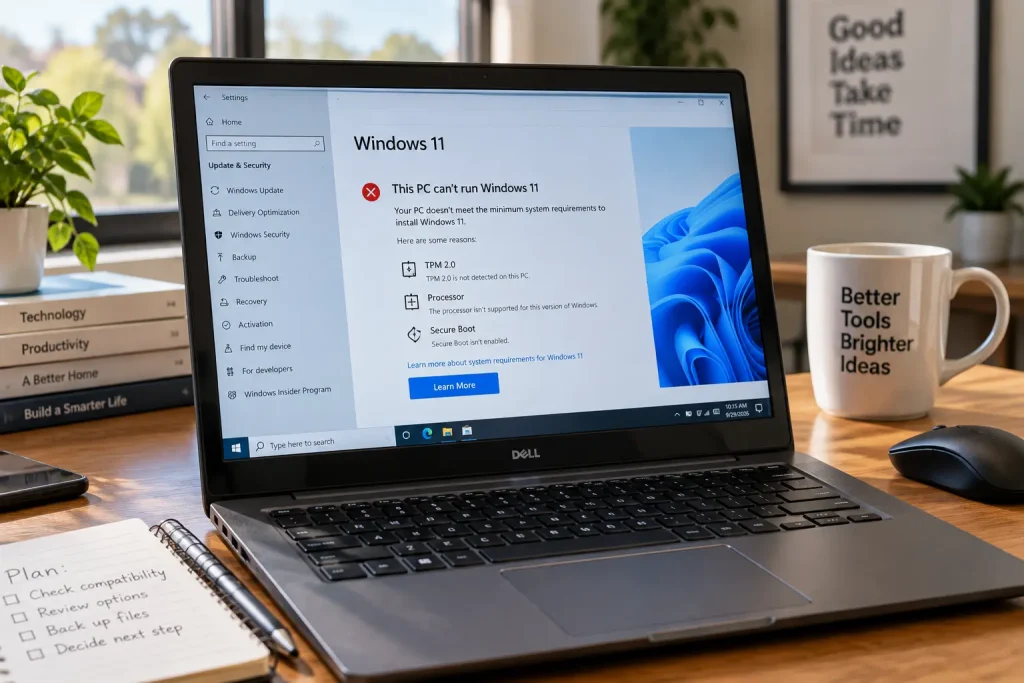
You open Windows Update expecting to see an upgrade button, but instead Windows tells you that your PC doesn’t meet the requirements for Windows 11.
The computer still works. It may even feel perfectly fast.
So what are you supposed to do with it?
This question matters more now because regular Windows 10 support ended on October 14, 2025. Windows 10 PCs didn’t suddenly stop working on that date, but Microsoft stopped providing the normal free software updates, security fixes and technical support that users had received during the operating system’s supported life.
Before buying a new computer, however, find out why your existing PC can’t upgrade.
The answer may be simpler than you expect.
First, Check Why Windows 11 Says Your PC Isn’t Compatible
Don’t assume an old computer automatically needs replacing.
Windows 11 has specific hardware requirements. Among the important ones are:
- a compatible 64-bit processor
- at least 4 GB of RAM
- at least 64 GB of storage
- UEFI firmware with Secure Boot capability
- TPM 2.0
- DirectX 12-compatible graphics
- a compatible display
The processor also has to be on Microsoft’s supported list.
The easiest place to start is Microsoft’s PC Health Check app.
Run the compatibility check and look at the actual reason your PC fails.
That’s important because:
“This PC can’t run Windows 11” doesn’t always mean the computer is too slow.
Sometimes the issue is a security feature that exists but isn’t enabled.
Check Whether TPM 2.0 Is Actually Disabled
TPM is one of the Windows 11 requirements that caused considerable confusion.
Some computers have TPM 2.0 support but don’t have it enabled in firmware.
Press:
Windows + R
Type:
tpm.msc
and press Enter.
Look for the TPM status and Specification Version.
If you see version 2.0, TPM itself probably isn’t the compatibility problem.
If Windows says a compatible TPM cannot be found, that doesn’t necessarily prove your motherboard lacks the feature.
On some systems, TPM functionality may be disabled in UEFI/BIOS.
Different manufacturers use different names. You may see settings referring to:
- TPM
- Security Device
- Intel PTT
- AMD fTPM
- Trusted Computing
Don’t randomly change firmware settings if you’re unfamiliar with them. Check the computer or motherboard manufacturer’s documentation for your exact model.
If TPM 2.0 is available but disabled, enabling it may remove one Windows 11 compatibility obstacle.
Check Secure Boot Too
Windows 11 also requires UEFI firmware with Secure Boot capability.
Open:
System Information
and look for:
BIOS Mode
and:
Secure Boot State
A modern system configured correctly for Windows 11 will generally use UEFI rather than the older Legacy BIOS mode.
Again, don’t start changing firmware or disk settings just because Secure Boot appears disabled.
A machine installed using an older boot configuration can require additional changes before Secure Boot can be used safely.
The useful first step is simply finding out whether this is the reason the compatibility check failed.
The Processor May Be the Real Limitation
This is where many otherwise capable computers reach a dead end.
Your PC might have:
- 16 GB of RAM
- an SSD
- good everyday performance
- TPM 2.0
and still fail Microsoft’s Windows 11 compatibility check because the processor isn’t supported.
Adding more RAM won’t solve that.
Installing a larger SSD won’t solve it either.
If the CPU is the only unsupported component, upgrading the processor may technically be possible on some desktop PCs. But motherboard compatibility, firmware support, labor and cost can make that a poor investment.
On most laptops, replacing the CPU isn’t a practical upgrade at all.
Before spending money, compare the cost of upgrading an old platform with the cost of a newer computer.
Don’t Confuse “Unsupported” With “Broken”
A Windows 10 PC didn’t become useless when support ended.
Your files didn’t disappear.
Installed software didn’t automatically stop opening.
The important change is security support.
Microsoft ended normal Windows 10 support on October 14, 2025. Without another support arrangement, an unsupported installation no longer receives the normal security fixes designed to address newly discovered Windows vulnerabilities.
That’s why continuing indefinitely as though nothing changed isn’t a good long-term plan, particularly for a computer used for:
- banking
- shopping
- work accounts
- password storage
- sensitive documents
Fortunately, Windows 10 users now have another option.
Option 1: Use Windows 10 Extended Security Updates
Microsoft’s consumer Extended Security Updates (ESU) program gives eligible Windows 10 PCs additional security coverage.
This is particularly useful for someone whose computer still works well but needs more time before replacing it.
Microsoft currently says the consumer ESU program covers eligible Windows 10 22H2 devices through October 12, 2027.
The important limitation is what ESU actually provides.
It is primarily a security bridge.
ESU provides critical and important security updates.
It does not turn Windows 10 back into a fully supported operating system with:
- new Windows features
- general product improvements
- normal Windows 10 technical support
Think of ESU as extra time to plan your next move.
Not a permanent extension of Windows 10.
How Do Consumers Get Windows 10 ESU?
On an eligible Windows 10 22H2 PC, open:
Settings → Update & Security → Windows Update
If the device qualifies, Microsoft provides an option to enroll in Extended Security Updates.
Microsoft currently offers consumer enrollment methods that can include:
- syncing PC settings through Windows Backup
- redeeming 1,000 Microsoft Rewards points
- making a one-time $30 USD purchase, or the local equivalent
Availability and exact options can depend on the account and region.
Microsoft has also extended enrolled consumer ESU coverage through October 2027.
Before paying anything, check Windows Update on the actual computer to see which enrollment choices Microsoft offers you.
Option 2: Keep the PC but Change How You Use It
Not every old PC has to remain your primary computer.
Suppose a Windows 10 desktop can’t officially run Windows 11 but still works perfectly for basic tasks.
You might eventually move sensitive everyday activities to a supported device while keeping the older PC for lower-risk purposes such as:
- offline media playback
- local file storage
- older peripherals
- hobby projects
- software that doesn’t require internet access
The appropriate use depends on what information the machine contains and how it connects to other systems.
An unsupported operating system deserves more caution when it remains connected to the internet.
Option 3: Consider Another Operating System
A PC that doesn’t qualify for Windows 11 isn’t necessarily incapable of running a modern operating system.
Linux can be an option for some older computers.
Distributions designed for ordinary desktop use can handle common tasks such as:
- web browsing
- documents
- media
- video calls
- basic productivity
But switching operating systems isn’t the right answer for everyone.
Before changing, check whether you depend on:
- Windows-only software
- specialist hardware
- proprietary business applications
- particular games
- Microsoft Office workflows
- printer or scanner drivers
The computer might run Linux well while still failing to meet your personal software requirements.
If you’re curious, many Linux distributions can be tested from a USB drive before replacing Windows.
Back up important files before making permanent operating-system changes.
Option 4: Replace the PC — but Only When It Makes Sense
Sometimes replacement really is the sensible choice.
A computer may be old enough that Windows 11 compatibility is only one of several problems.
For example:
- battery life has become poor
- storage is failing
- the display is damaged
- the computer frequently overheats
- performance no longer meets your needs
- replacement parts are expensive
- several components need upgrading
In that situation, spending more money to extend the life of the machine may not be worthwhile.
But don’t replace a useful PC only because you saw a Windows compatibility warning.
First determine what failed.
A disabled security setting and an unsupported eight-year-old CPU are very different problems.
Should You Install Windows 11 on Unsupported Hardware?
You’ll find plenty of tutorials showing ways to bypass Windows 11 hardware checks.
Microsoft itself acknowledges that Windows 11 can end up installed on devices that don’t meet the minimum requirements, but it does not recommend doing so.
The company warns that unsupported devices may experience compatibility problems and aren’t guaranteed to receive updates, including security updates.
That changes the calculation.
Installing Windows 11 is easy to think of as the goal.
It isn’t.
The goal is to have a computer that remains reliable and appropriately supported.
For a test machine or hobby PC, someone may accept unsupported configurations.
For a primary work or financial computer, deliberately creating an unsupported Windows installation deserves much more caution.
What About Buying TPM Modules or Other Upgrade Parts?
Don’t buy hardware until you know exactly what is preventing the upgrade.
If Windows 11 reports a TPM problem, first determine whether firmware TPM support already exists.
Many systems use TPM functionality integrated into the platform rather than requiring a separate physical module.
Likewise, adding RAM won’t help if your processor is unsupported.
Replacing a hard drive won’t solve a Secure Boot problem.
The correct order is:
Diagnose → check configuration → evaluate upgrade cost → spend money.
Not:
Buy parts → hope Windows 11 works.
A Simple Decision Guide
Use this as a starting point:
| Situation | What to consider |
|---|---|
| TPM 2.0 exists but is disabled | Check manufacturer instructions |
| Secure Boot is the issue | Check UEFI configuration carefully |
| CPU is unsupported | Compare platform upgrade vs. replacement |
| PC works well but can’t upgrade | Consider Windows 10 ESU |
| PC is also physically failing | Replacement becomes more attractive |
| Only basic tasks are needed | Linux may be worth testing |
| Machine is used mostly offline | Keeping it may still be practical |
| You need a primary secure Windows PC long term | Plan for supported hardware |
There isn’t one answer for every computer.
If You Stay on Windows 10, Do the Basics Well
If you decide to use Windows 10 during the ESU period, basic security habits still matter.
Keep:
- ESU security updates installed
- browsers updated
- applications updated
- Microsoft Defender or another trusted security solution active
- important files backed up
- unnecessary software removed
Be cautious with unexpected attachments, downloads and software from unknown sources.
ESU reduces one major risk — missing Windows security patches — but it doesn’t make unsafe browsing habits harmless.
Don’t Rush Into Buying a New Computer
Windows 10 reaching